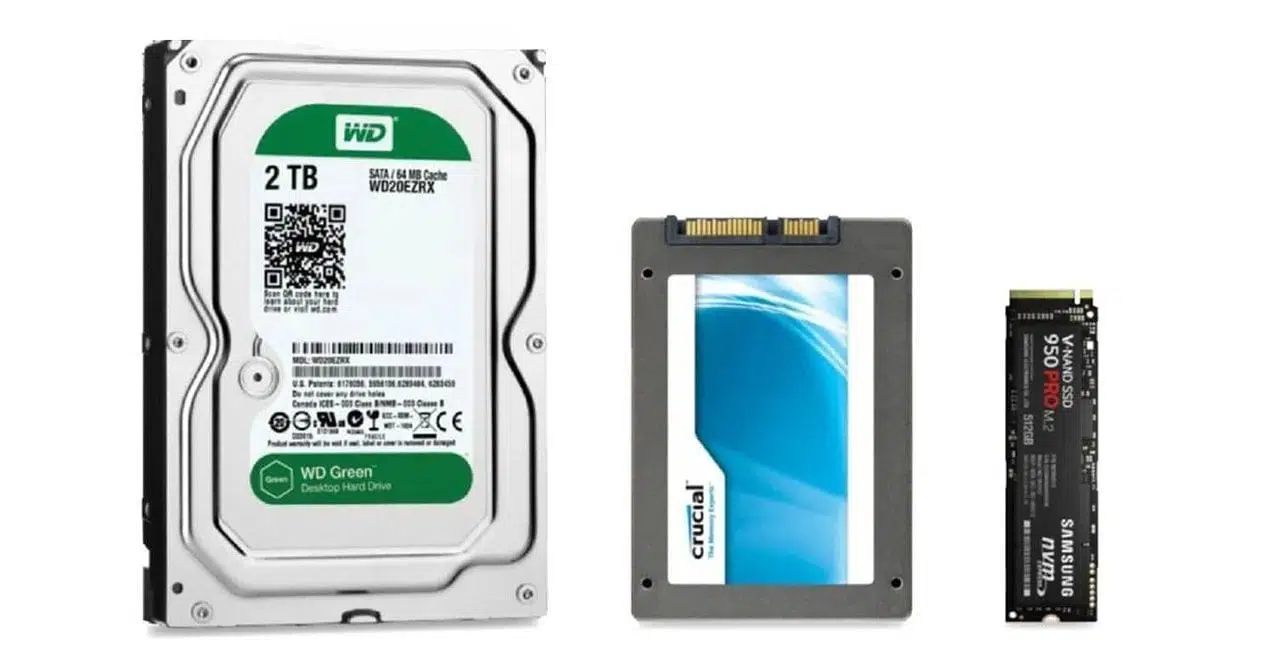
Sure, here’s a guide on how to clone your hard drive:
Cloning your hard drive is a process of creating an exact copy of your existing hard drive onto a new hard drive or SSD. This can be useful if you’re upgrading to a larger or faster drive, or if you want to create a backup of your data. Here’s how to do it:
Choose a cloning tool
There are several free and paid cloning tools available, including Clonezilla, Macrium Reflect, and Acronis True Image. For this guide, we’ll be using Clonezilla, which is a free and open-source cloning tool that works on Windows, Mac, and Linux. So today I am going to go with Macrium Reflect. You don’t have to chose this one the steps are very similar so you can still follow along.
Step 1: Download and Install Macrium Reflect
First, download Macrium Reflect from the official website and install it on your computer. The link is below!
https://www.macrium.com/reflectfree
Step 2: Connect your new hard drive
Connect your new hard drive or SSD to your computer using a SATA or USB cable. Make sure the new drive is recognized by your computer.
Step 3: Open Macrium Reflect
Open Macrium Reflect and select the “Clone this disk…” option from the main menu.
Step 4: Choose your source disk
Choose the disk you want to clone as the source disk. This should be your existing hard drive.
Step 5: Choose your destination disk
Choose the destination disk to which you want to clone your source disk too. This should be your new hard drive or SSD.
Step 6: Configure cloning options
Configure the cloning options, such as the file system, partition layout, and cloning method. Macrium Reflect will automatically detect the file system and partition layout of your source disk, but you can customize them if needed.
Step 7: Start the cloning process
Once you’ve configured the cloning options, Macrium Reflect will begin cloning your hard drive. This process can take several hours, depending on the size of your hard drive and the speed of your computer.
Step 8: Verify the clone
After the cloning process is complete, restart your computer and boot from the new hard drive or SSD to make sure everything works correctly. If there are any issues, you can try cloning your hard drive again or restoring it from a backup.
Conclusion
Cloning your hard drive can be a useful way to upgrade your storage or create a backup of your data. While the process can be time-consuming, it’s relatively straightforward and can be done with tools like Macrium Reflect.
Leave a Reply